
Prepare the exam on the computer
As always, in EvaLumina for Mac or Windows: the bank, the forms and Generate booklets and answer key…, as in Getting started.
Take the answer key to the phone
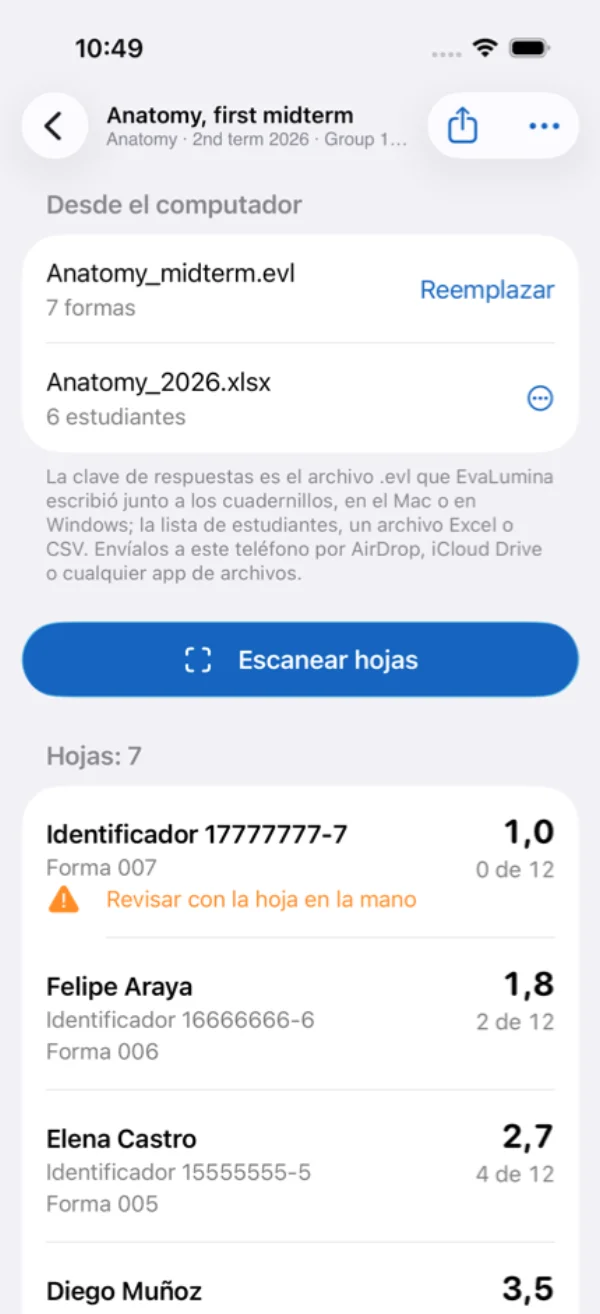
Send the phone the answer key file (.evl) EvaLumina wrote beside the booklets and, if you want names on the grades, the class list (Excel or CSV). By AirDrop, iCloud Drive or any file app; from Windows, by OneDrive or mail.
Open it in EvaLumina Capture
New evaluation, and under From the computer open the answer key and, with Open the class list…, the class list.
Scan the sheets
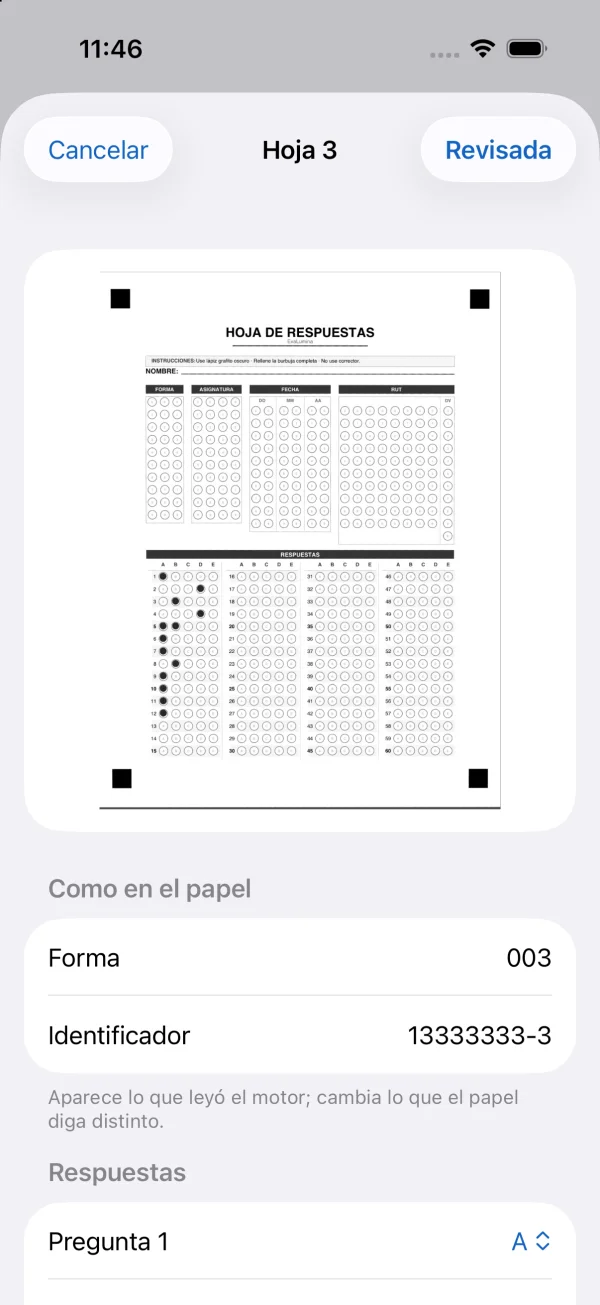
Press Scan sheets and point the camera at each sheet: it is read on screen and taken when the reading holds. A sheet in doubt is marked, to be checked with the paper in hand.
Grades on the spot
Each sheet is graded as it is taken, with its name, form and points. Nothing is saved to Photos.
Back to the computer
Export the record and send it to the computer. There, in the evaluation's Grades, Open an earlier batch… brings it in, for the analysis and the course record.
Without a computer
EvaLumina Capture also works alone: Try it with a printed sample makes an exam of three forms to print, fill in and scan, and a simple bank written on the phone gives an exam with its forms and answer sheet, to print or share. Metadata, quotas, variants, blocks and the analysis are on the Mac and Windows.
With EvaLumina Pro on the computer Pro
An evaluation is sent from the computer to the phone whole, and its record comes back to it.

